
Make a Video with Pictures
PhotoGenerator AI helps you make a video with pictures by arranging your photos into a sequence with a clear opening frame, a middle beat, and a closing shot that lands. Upload your pictures, set the order, choose a motion style per photo, and preview the result before anything is final. When your first picture is strong, the rest of the sequence has something to build on. Make a video with pictures that reads as intentional rather than assembled, then export and share. Whether you want to make a video from pictures of a birthday, a trip, or a product, the sequence is the decision that matters most. PhotoGenerator AI keeps the controls focused on order, motion, and duration so you can make a video with pictures without wrestling with a timeline editor. Use this page when you want to make a video with pictures from a small set and need the sequence to feel intentional.
Make a Video with Pictures in Three Steps
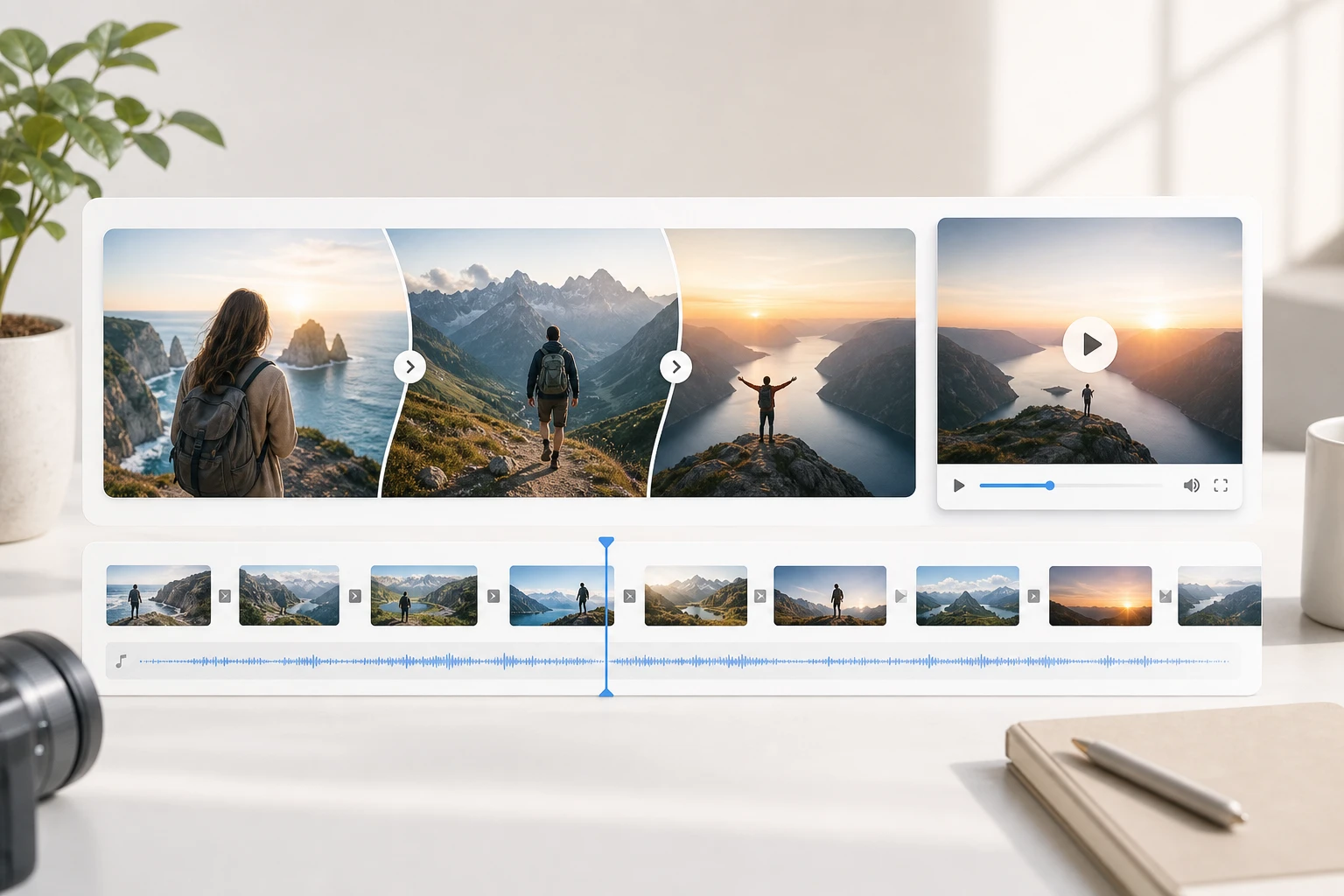
The sequence is the creative decision that matters most when you make a video with pictures. PhotoGenerator AI keeps the steps short so you spend your time on picture order and motion choice, not settings. You can make a video with pictures from photos taken on any device as long as they are JPG or PNG files.
Upload Your Photos and Set the Order
Add the photos you want to use and arrange them into the sequence you have in mind. The opening picture sets the mood, so choose one with a clear subject and reasonable light. Drag photos to reorder at any point before you commit to the sequence. If you want to make a video with pictures and music, you can add a background audio track at this stage.
Choose a Motion Style Per Photo
PhotoGenerator AI offers motion options per photo so a quiet portrait can hold still while a landscape gets a slow pull. Pick a style that fits the feeling of each picture rather than applying one setting across every frame. The preview shows how each photo moves before the full video is generated, giving you a chance to adjust before export.
Preview the Sequence and Export
Watch the full sequence through once in the preview player. If the pacing feels off or one photo holds too long, adjust the duration on that frame and preview again. Confirm when the sequence reads the way you want, choose the aspect ratio that fits your destination platform, then export your finished video file.
PhotoGenerator AI Tools to Make a Video with Pictures
Each feature below addresses a specific decision point when you make a video with pictures: order, motion, duration, and output. The goal is a video that reads as intentional, not a slideshow that happens to have transitions.
Picture Order Preview
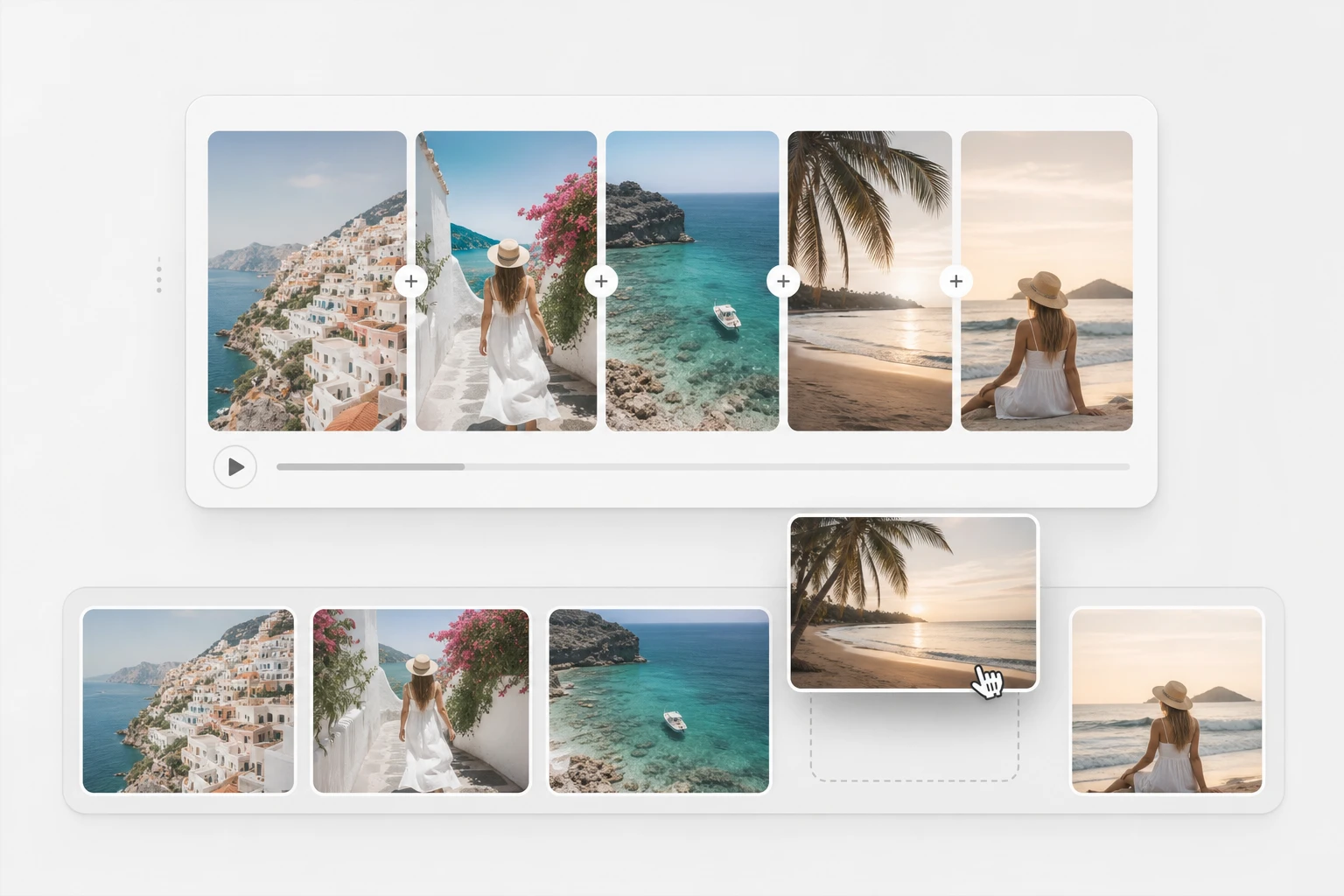
PhotoGenerator AI displays your uploaded photos as a horizontal strip so you can see the full sequence before any motion is applied. Drag a photo to a new position and the strip updates immediately, letting you compare the emotional shift between two different orderings. Works best when you have at least three photos so the opening, middle, and closing positions are distinct.
Per Photo Motion Control
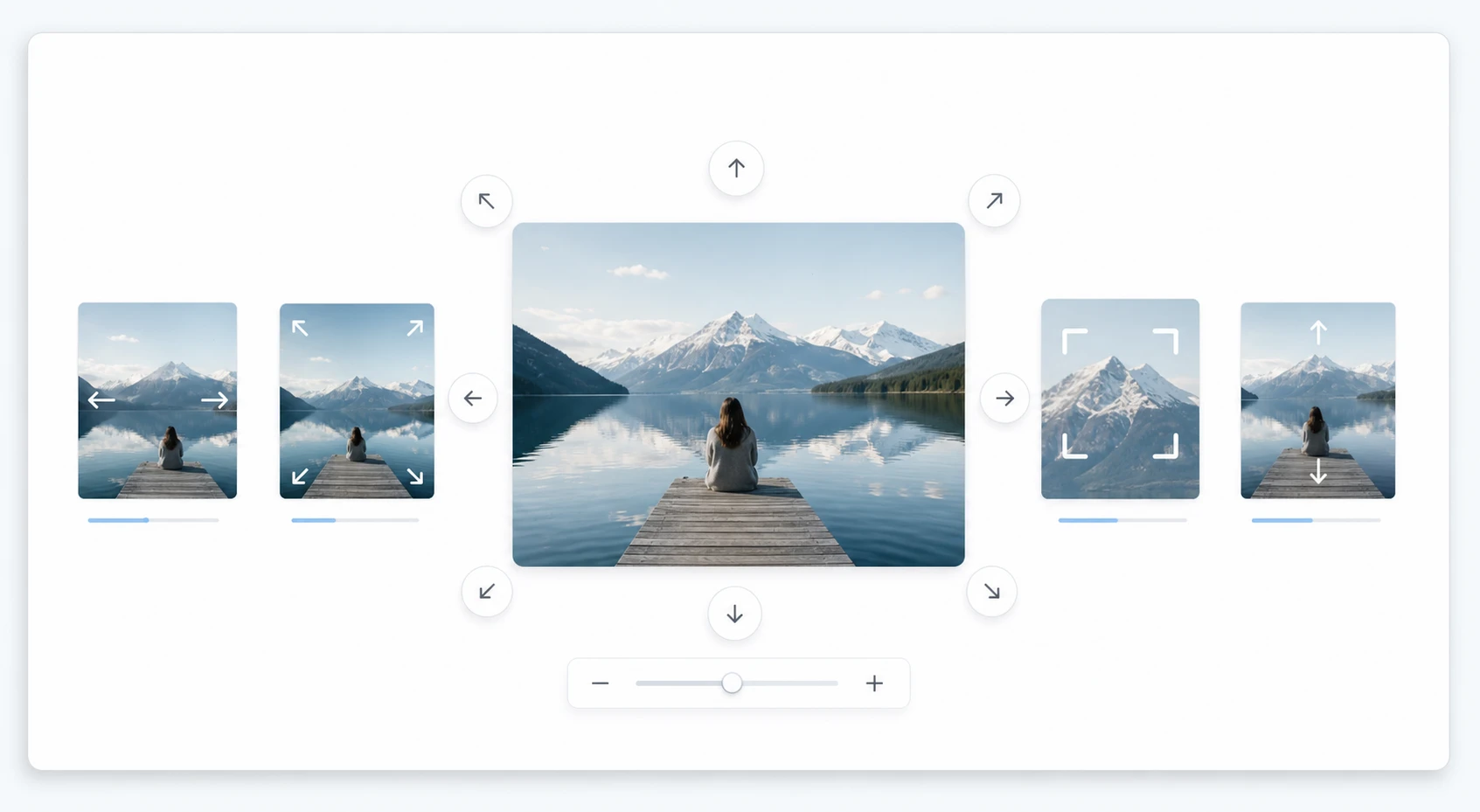
Each photo in your sequence gets its own motion setting rather than inheriting one global style. A slow zoom reads differently from a gentle pan, and the difference matters when adjacent pictures have different energy levels. If you apply motion to every photo at high intensity, the sequence can feel restless, so the control defaults to a moderate setting you can raise per frame.
Frame Duration Adjustment
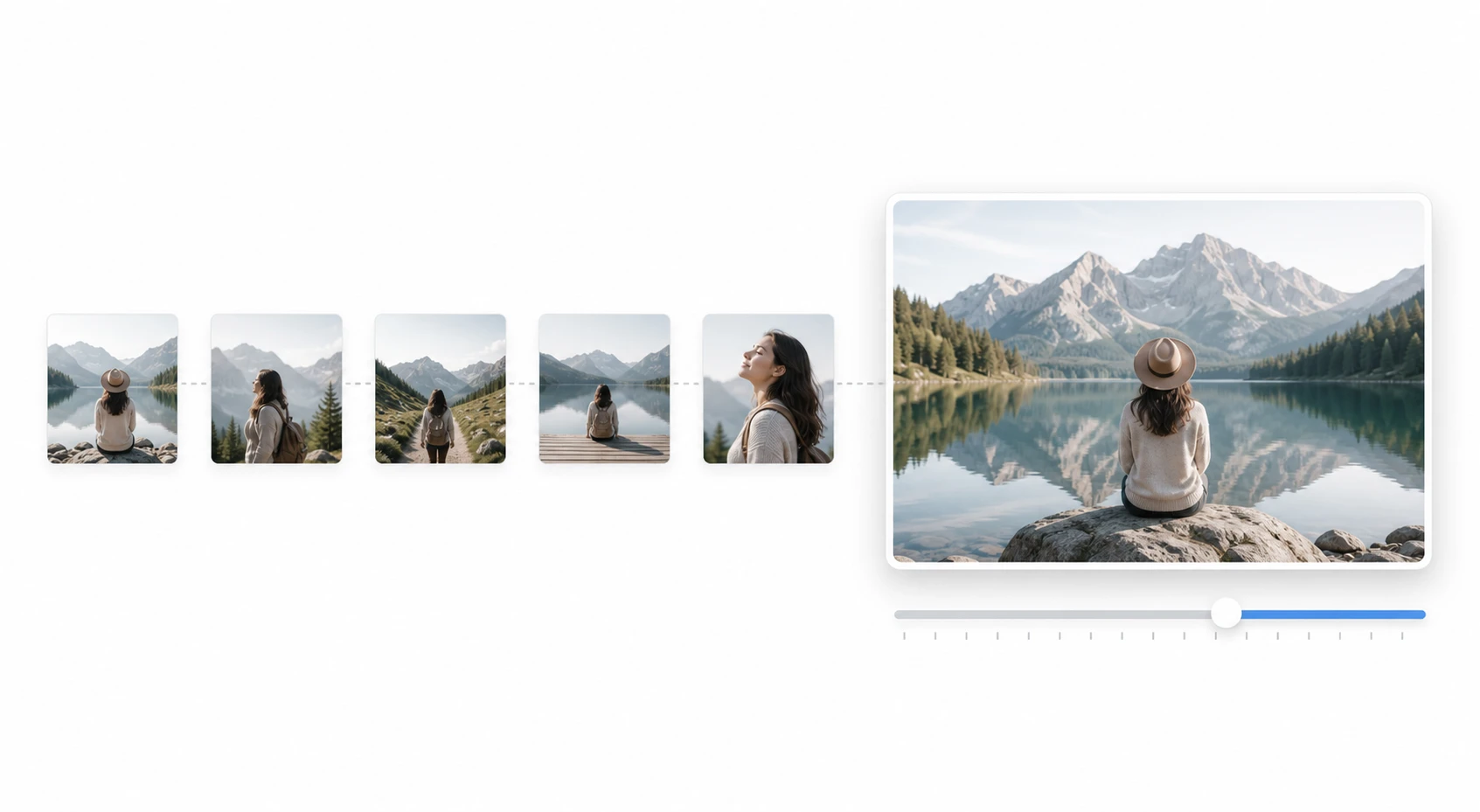
PhotoGenerator AI lets you set how long each photo stays on screen before the sequence moves on. A closing photo benefits from a longer hold, giving the viewer a moment to land before the video ends. If the total runtime feels too long, shorten the middle frames first and leave the opening and closing photos at full duration.
Aspect Ratio Selection at Export
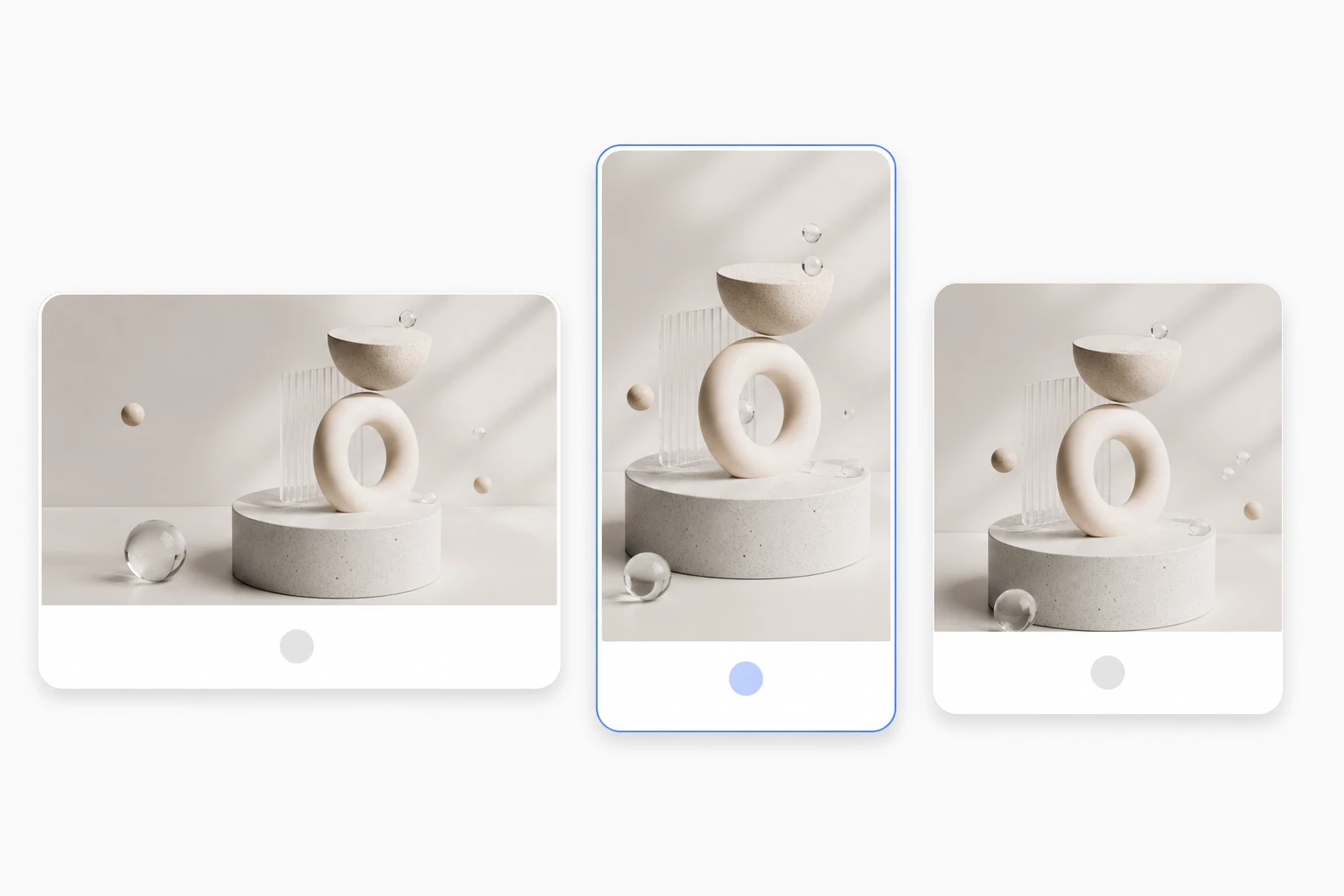
Choose the output ratio that fits where the video will go: 16:9 for a wide screen view, 9:16 for a vertical feed, or 1:1 for a square post. PhotoGenerator AI crops and repositions each photo to the selected ratio at export rather than letterboxing the frames. If a photo has important detail near the edges, review the crop preview before confirming the export.
Make a Video with Pictures for These Occasions
Each example below follows the same structure: a clear opening picture, a middle beat that carries the feeling, and a closing frame that gives the video somewhere to land. That structure is what separates a picture video that holds attention from one that drifts.
Birthday Memory Sequence
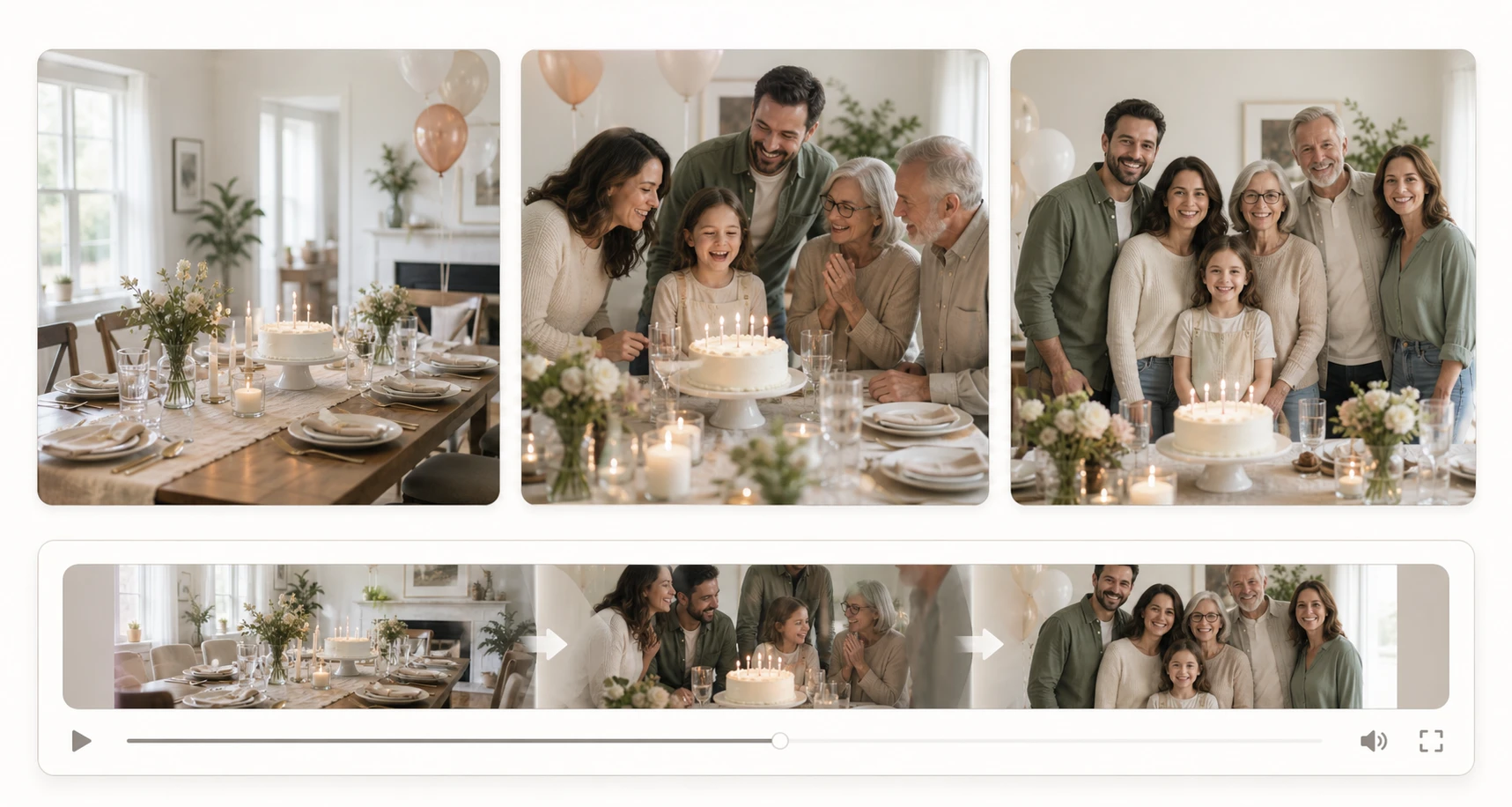
Open with a photo of the setup before anyone arrives, move through candid moments from the celebration, and close on a group shot or the last quiet moment of the day. The sequence works because the viewer knows where they are in the story at every frame. PhotoGenerator AI lets you make a video with pictures of the day that holds together as a memory rather than a random photo collection.
Travel Story from a Trip
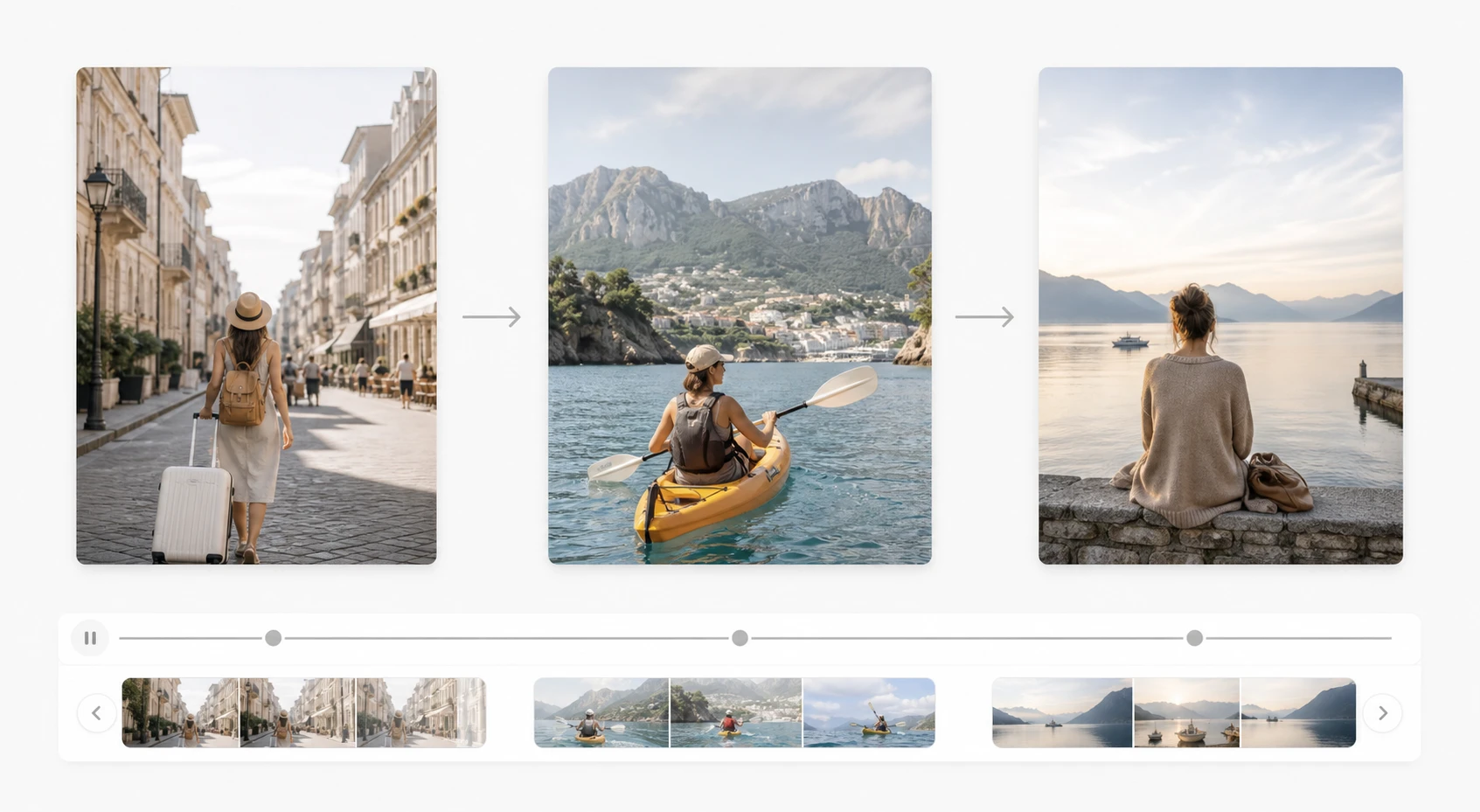
Order travel photos geographically or by time of day rather than randomly. An arrival shot opens the sequence, a landscape or activity photo carries the middle, and a departure or reflection photo closes it. If you want to turn pictures into a video that feels like a short travel film rather than a photo dump, the order of shots does most of the work.
Product Photo Story for a Listing
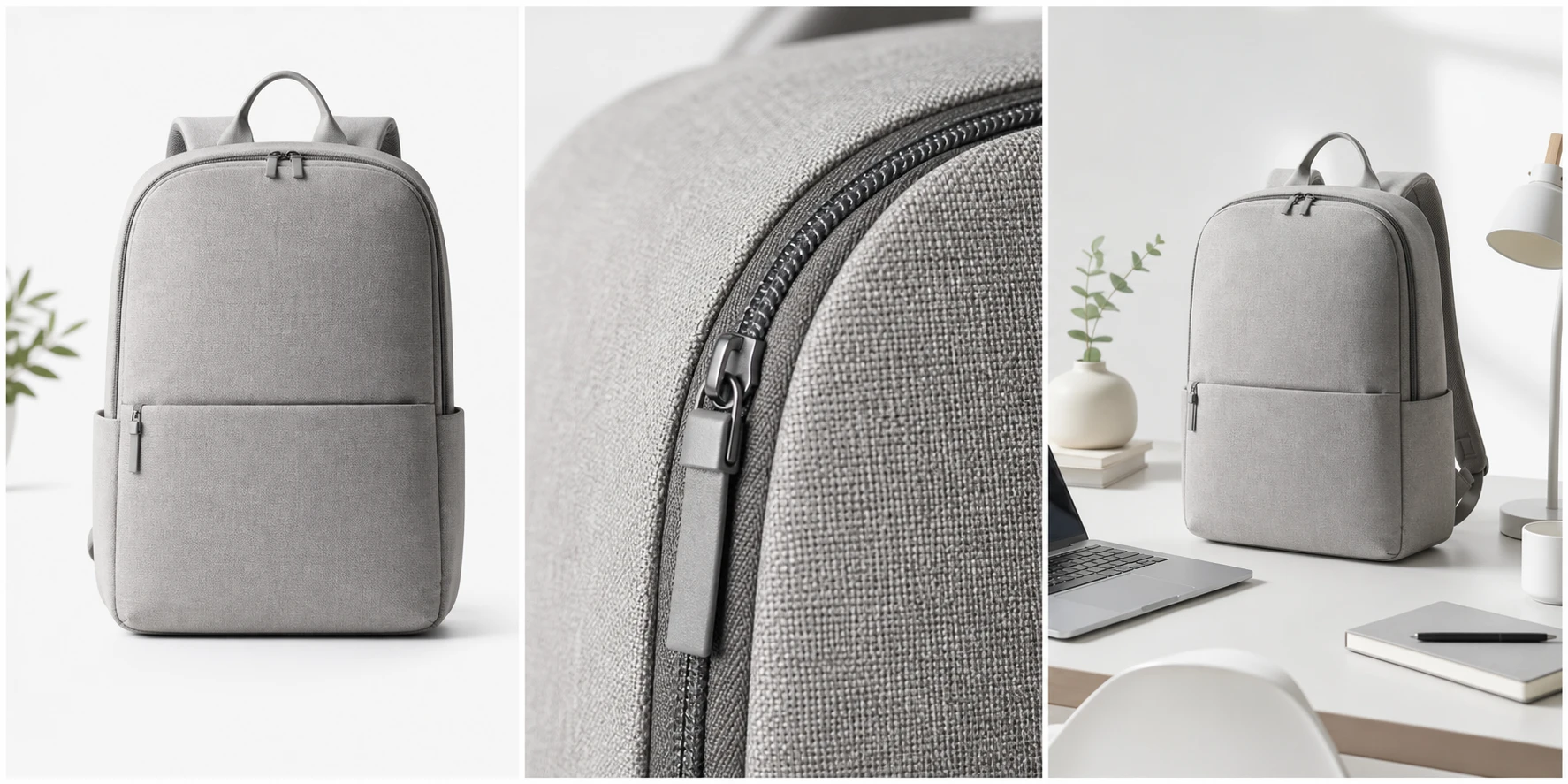
Ecommerce sellers can make a video with pictures of a single product by sequencing shots from overview to detail. Open on the full product, move to a close shot of a key feature, and close on a lifestyle or context photo. This approach suits ecommerce listing pictures where the buyer needs to understand the product before seeing it in use. For structured multi angle production workflows, the create video from photos approach handles more complex sequences.
Family Milestone Video
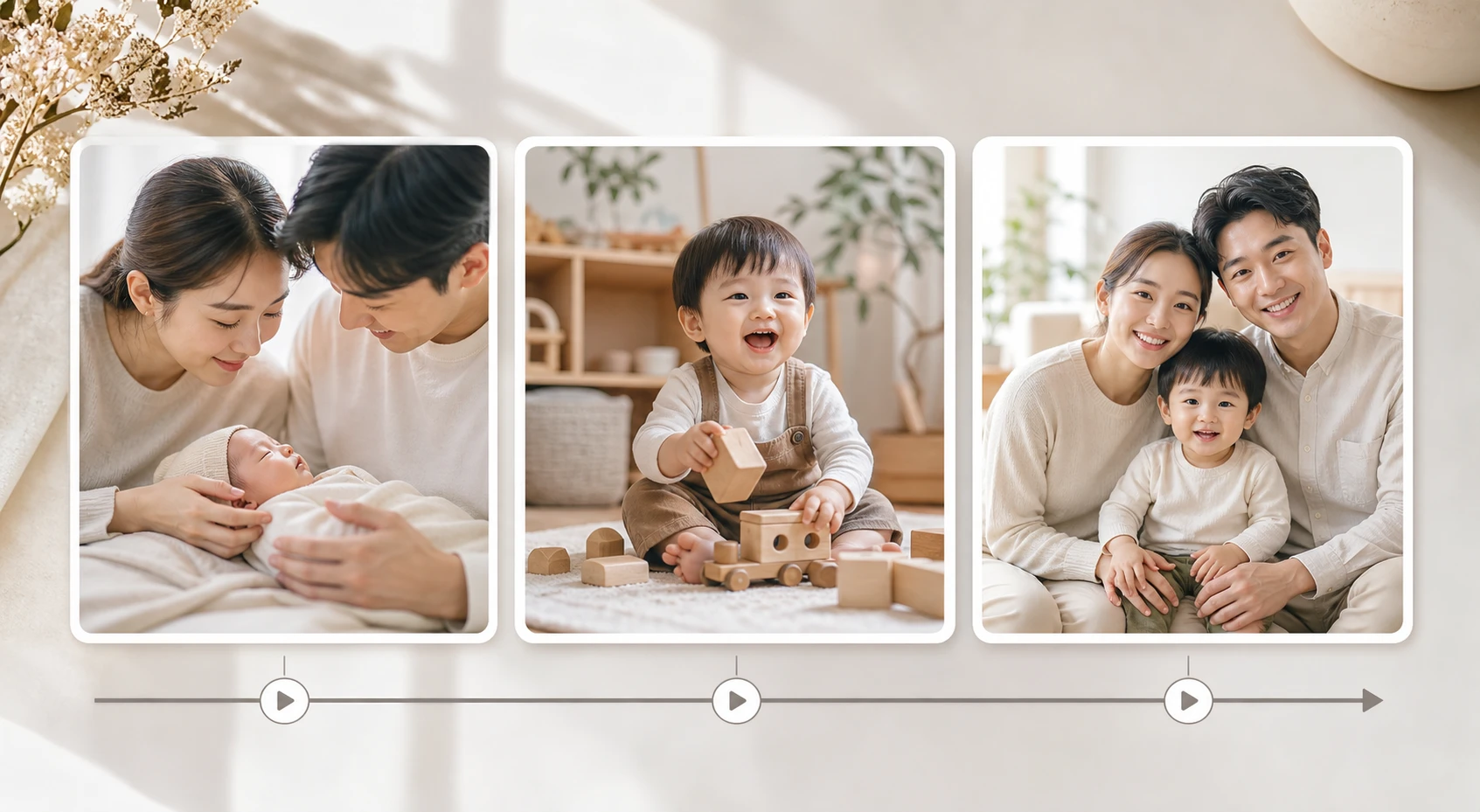
Collect photos from a school year, a first year of life, or a family move and make a movie from photos that marks the span of time. The opening photo anchors the start of the period, the middle section moves through key moments, and the closing photo signals the end of that chapter. PhotoGenerator AI lets you make a video with pictures of milestones that finishes with a held moment rather than an abrupt cut.
Questions About Making a Video with Pictures
Start Arranging Your Pictures into a Video
Upload your photos, set the order, and preview the sequence before you export. PhotoGenerator AI keeps the controls focused on the decisions that matter: which photo opens the story, how long each frame holds, and what the closing shot leaves the viewer with. Make a video with pictures for a birthday, trip, product, or milestone and check how the sequence feels before anything is final. This workflow also helps when you want to turn pics into video, turn photos into a video, create videos from photos, or convert photos to video without treating the page like a complex album maker. Make a video with pictures once with a short set, then expand only if the story still feels clear.
Get Started