
Image to Video AI
PhotoGenerator AI analyzes the depth, subject, and lighting in your still image and generates natural motion video output guided by your prompt. Upload a JPG or PNG, describe the motion you want, and receive an MP4 ready for social, campaign, or production use. The output is not a slideshow every frame is generated with AI driven movement that fits the scene.
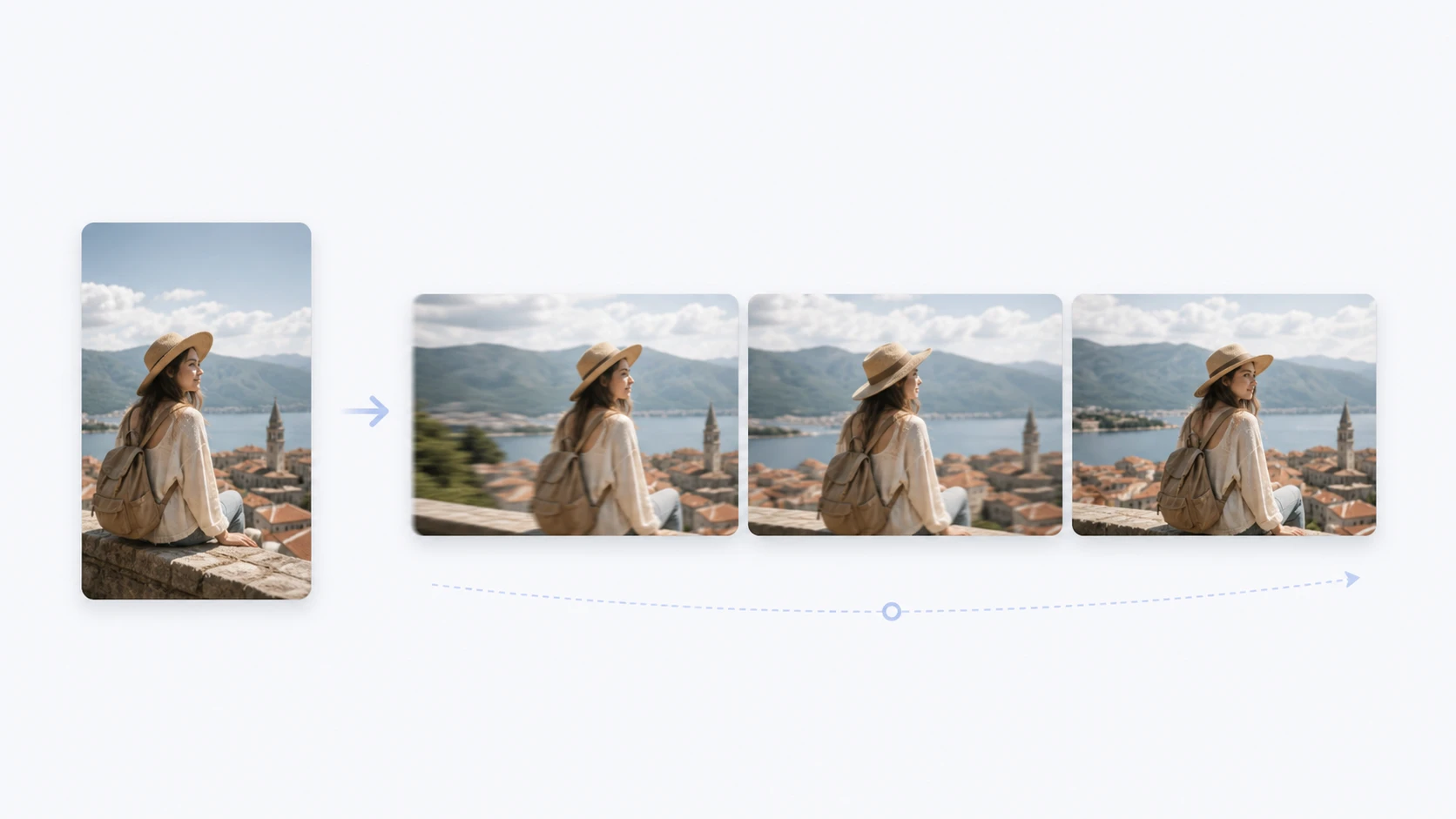
How Image to Video AI Works
Three steps take your still image from source to moving video output. Each step is a creative decision point, not a black box.
Upload Your Image and Set the Scene
Start by uploading a JPG or PNG. PhotoGenerator AI reads the subject, background layers, and depth information in the image before any generation begins. When the subject is clearly separated from the background, the motion output is sharper and more controlled.
Write a Motion Prompt
Describe the movement, atmosphere, or camera behavior you want. A prompt like 'slow push in with light wind through the trees' gives PhotoGenerator AI enough direction to generate motion that fits the scene rather than applying a generic effect. The prompt is your primary creative control lever here.
Preview, Adjust, and Export
PhotoGenerator AI generates a preview of the motion video for your review. Check the pacing, the motion path, and the framing before you export. If the output needs a different intensity or direction, revise the prompt and generate again. The final export is a standard MP4 that works across social platforms and editing timelines.
Where Image to Video AI Fits Work
Each scenario below represents a real production gap that image to video ai tools are built to close, not a general creative stretch.
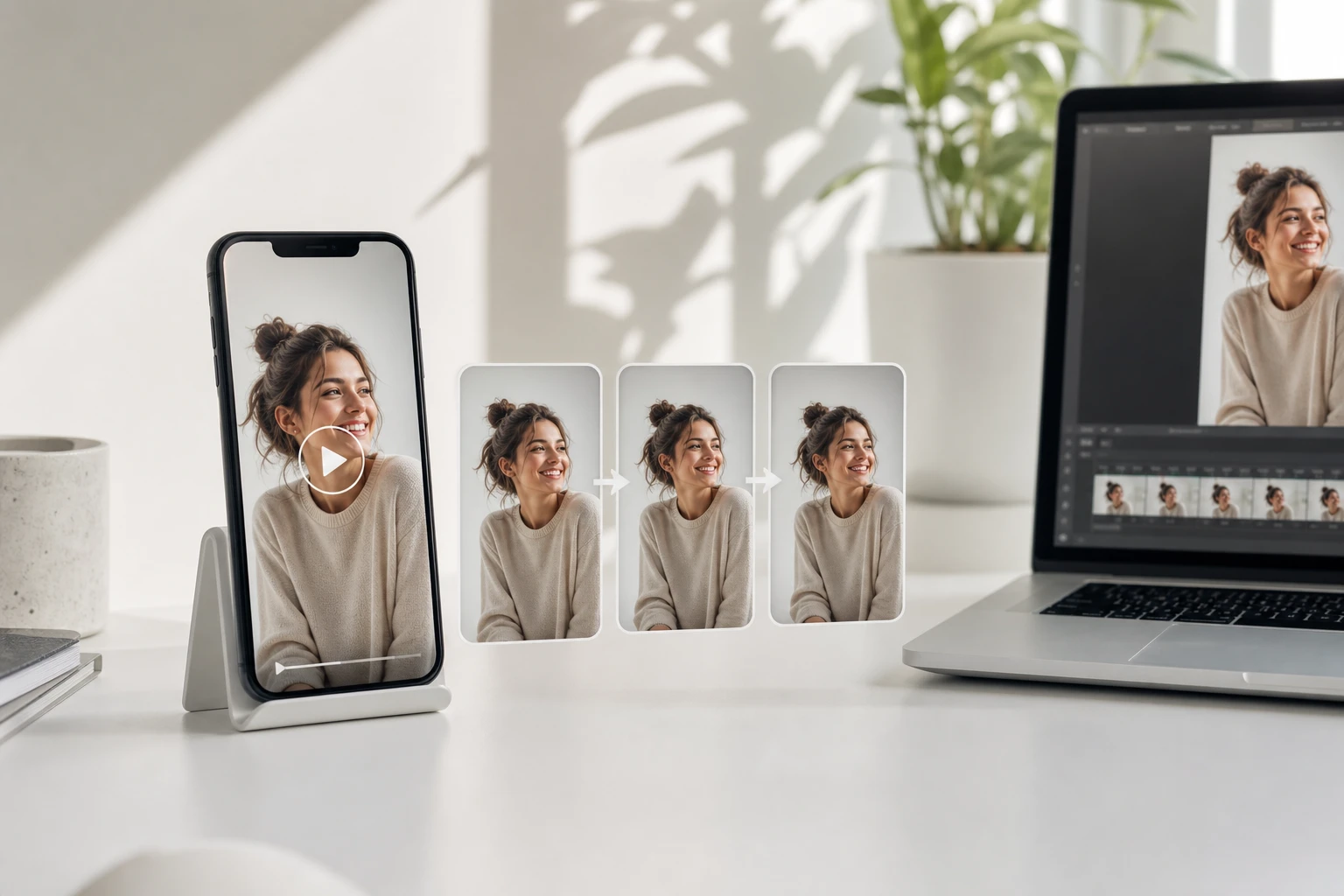
Social Media Loop Content
A still product photo or portrait becomes a motion loop for TikTok, Instagram Reels, or YouTube Shorts without filming new footage. PhotoGenerator AI generates the motion directly from the image structure, so the output holds up at full screen. If your source image has strong contrast between subject and background, the loop feels deliberate rather than mechanical.
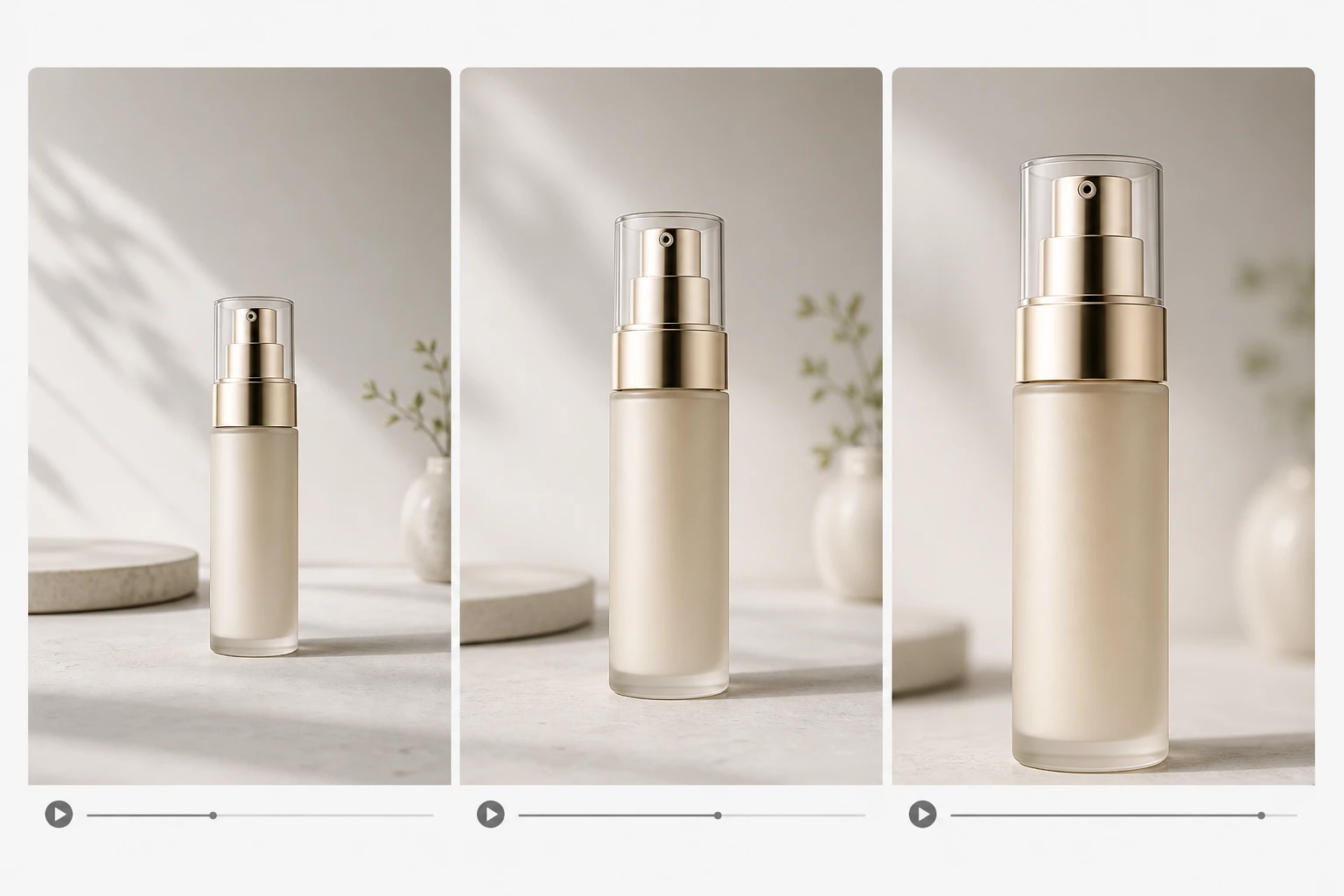
Product Motion Ad
Static product photography gains light movement, subtle depth shift, or a slow camera pull that makes it read as video ad creative. Marketers can take existing product images from a catalog shoot and generate motion assets without returning to the studio. The image to video ai output fits standard ad placement ratios and exports as MP4.
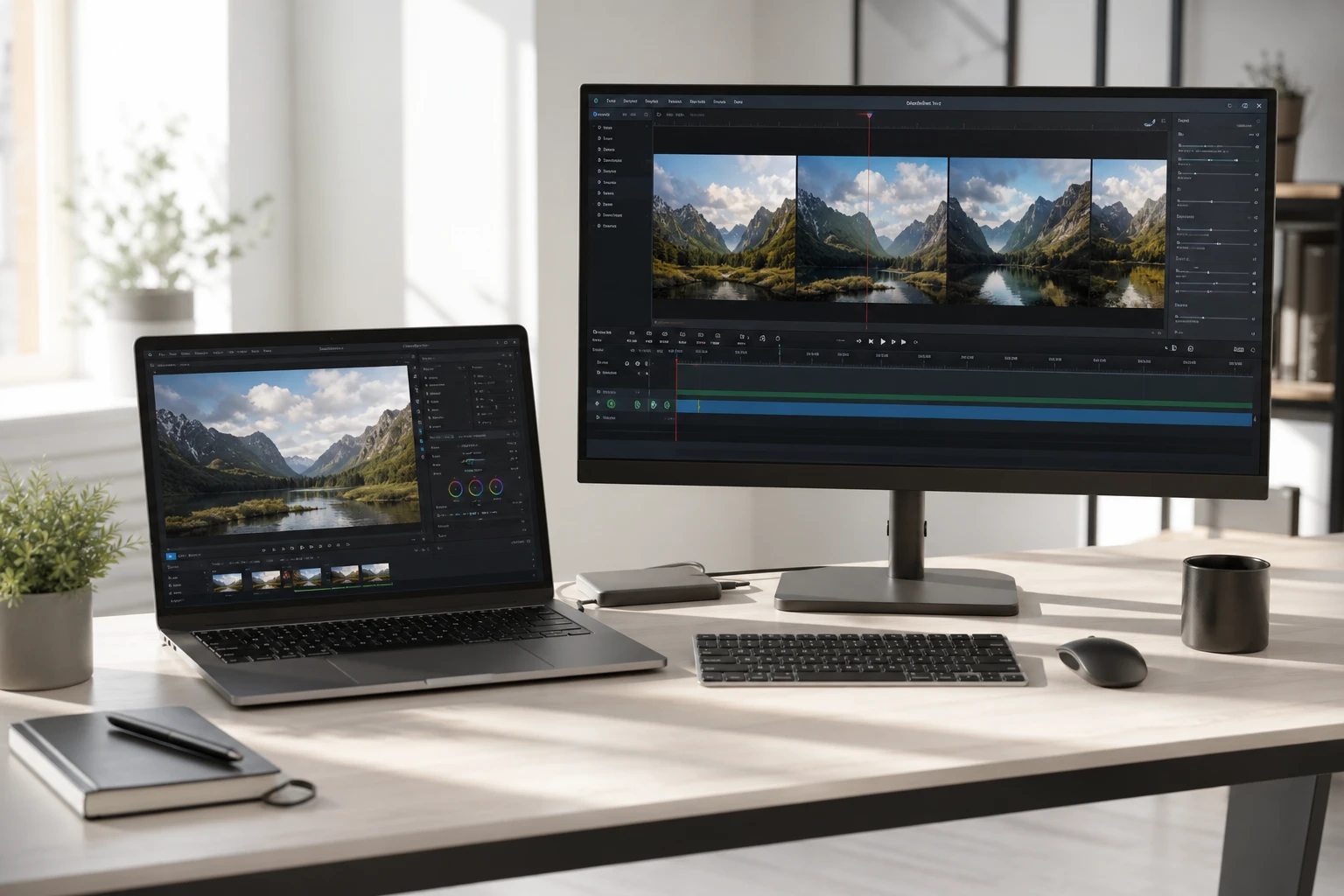
Cinematic B Roll from Stills
Video editors working on a sequence sometimes run short on B roll footage for a location or subject. An image to video ai generator fills that gap by generating motion clips from reference stills. The resulting clip cuts naturally into an edited timeline when the still image has clear subject separation and readable depth.
Animating Concept Art or Illustration
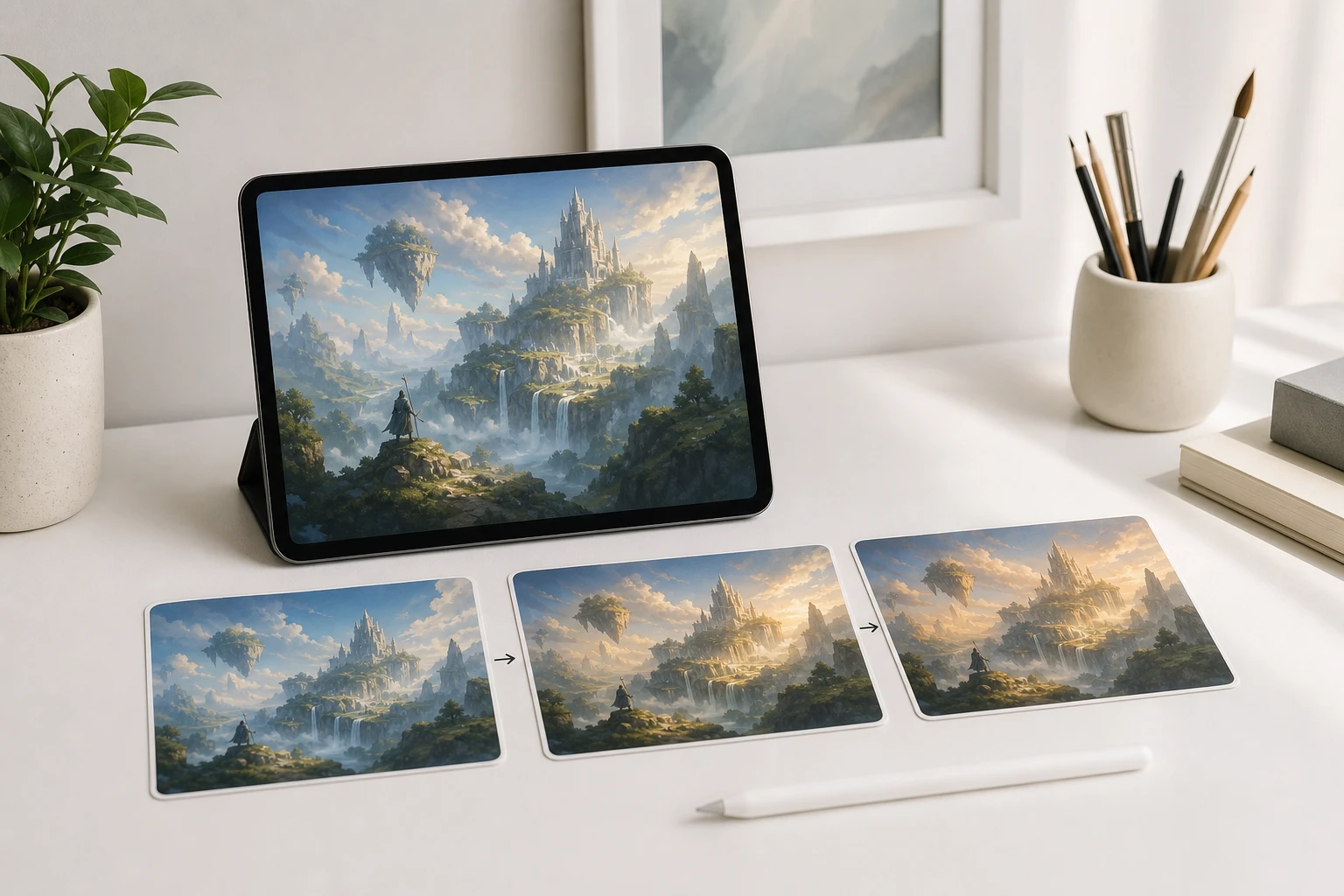
Digital artists and illustrators can bring a finished still piece into motion without rebuilding it in animation software. PhotoGenerator AI reads the compositional depth in concept art, character work, or AI generated illustration and adds motion that respects the original framing. The result is an animated version of the static work, not a reinterpretation of it.
Image to Video AI vs Older Approaches
Understanding what this technology replaces helps you decide where it fits in your production workflow and when a different tool is the better choice.
AI Motion Generation vs Photo Slideshow Software
Slideshow tools assemble multiple images into a sequence with crossfades or cuts between frames. An image to video ai generator works differently: it produces motion within a single image by generating new frames that animate the scene itself. The output plays as a continuous video clip, not a timed gallery. If your goal is a multi photo story or memory reel, a slideshow builder is still the right tool for that use case, explore our images to video workflow built around multiple source photos.
AI Image to Video vs Manual Keyframe Animation
Traditional motion graphics workflows require placing keyframes on a timeline, setting easing curves, and adjusting layer by layer. That level of control is valuable for precise animation, but it takes time and technical skill. An ai image to video generator produces a motion video from a single prompt and image upload, which covers the majority of social and campaign use cases without opening a keyframe editor. For frame precise character animation, dedicated animation software still has the edge.
Prompt Guided Motion vs Static Filter Effects
Photo editing apps offer motion blur, zoom burst, or parallax effects as filters applied to the whole image equally. An image to video ai generator reads the scene structure and applies motion that responds to the actual depth and subject position in your image. The resulting video moves in a way that makes physical sense for the scene rather than applying a uniform effect that looks the same regardless of content.
Image to Video AI Questions Worth Asking
Upload an Image and See the Motion PhotoGenerator AI Generates
Pick any still image from your library, write a short motion prompt, and generate your first image to video ai clip. The output is reviewable before you export, so the first attempt is part of the creative process, not a one shot commitment.
Get Started