
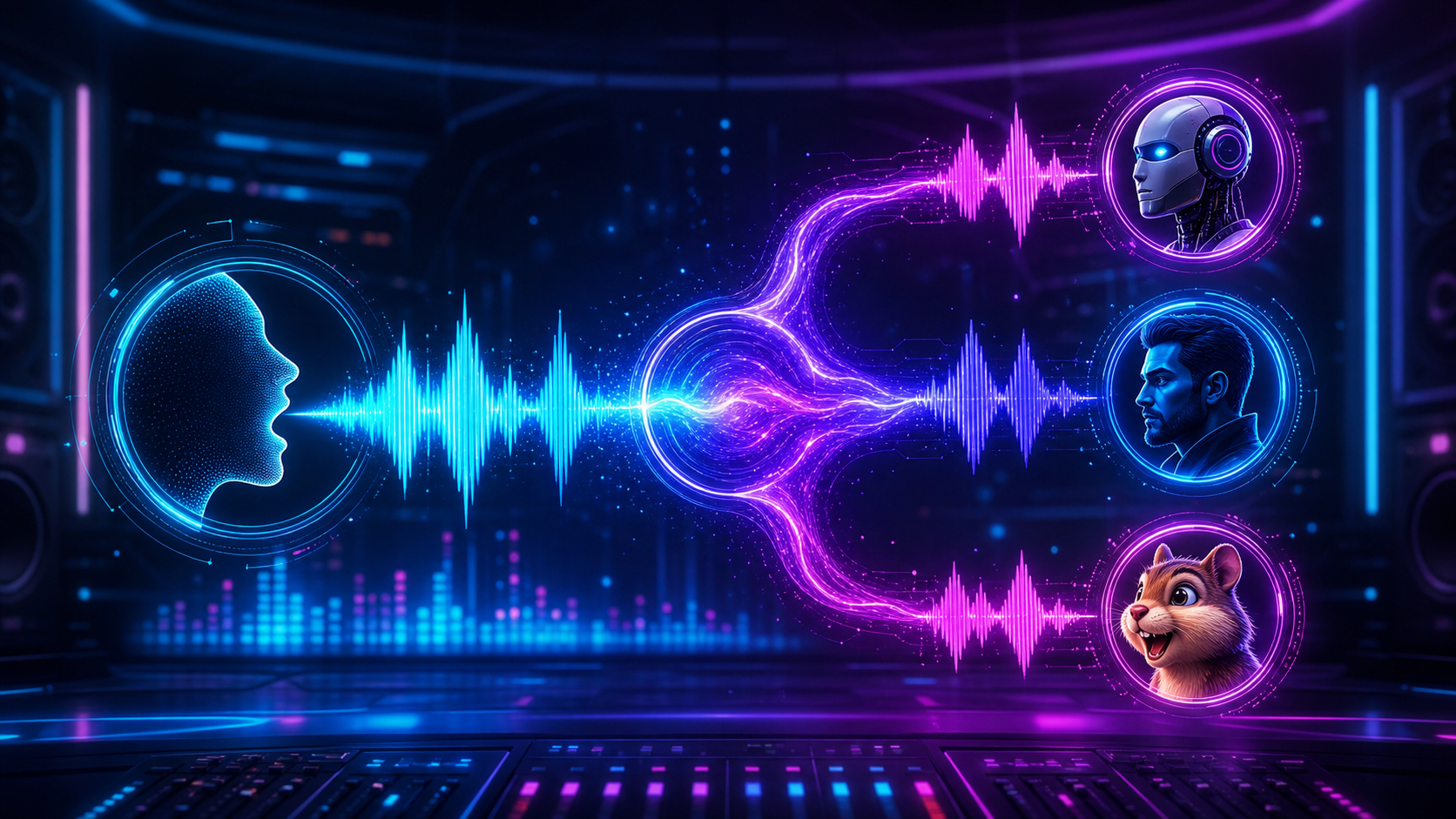
Generate commercial audio with a voice changer.
PhotoGenerator turns a written voice prompt into expressive audio for ads, livestreams, game characters, and social clips. Use the voice changer to set age, tone, emotion, pitch, and speed while keeping speech rhythm consistent.
Create Image
Voice changer workflow for finished audio
Write the voice prompt
Describe the speaker, language, emotional level, pace, and target platform. A precise prompt gives the voice changer clear direction before generation starts.
Generate the changed take
Upload or paste the line, choose a style, and let the ai voice changer produce a new take with the same meaning and timing.
Review and export audio
Check pronunciation, pauses, loudness, and tone before using the output in a video, ad, or stream. Save a version that matches the channel spec.
Voice changer controls for usable audio
Control the parts that decide whether a changed voice can ship. PhotoGenerator focuses on expressive detail, clean output, and repeatable settings for professional production.
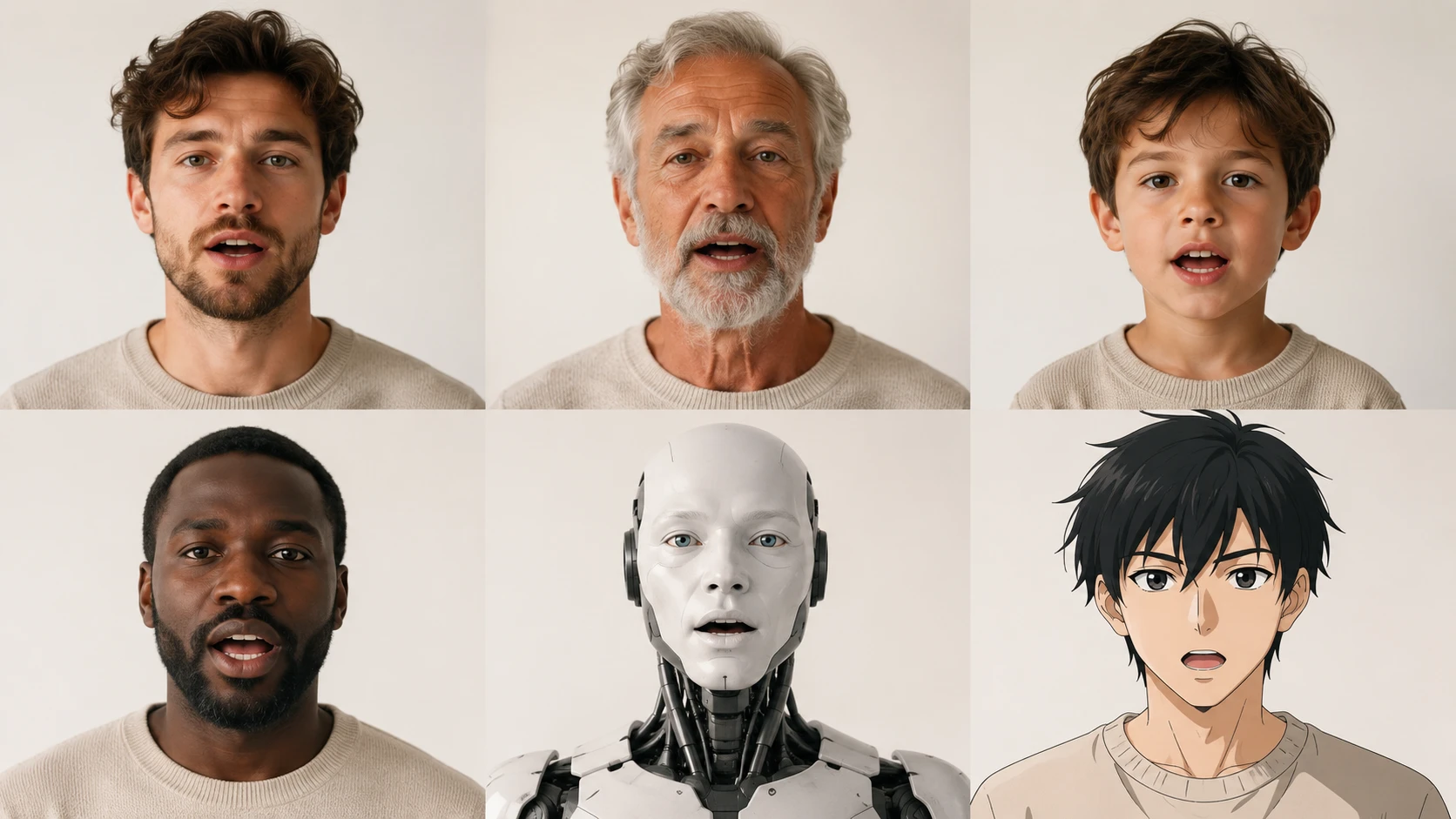
Character voice profiles
Turn one recorded line into a host, mentor, child, elder, robot, or anime style voice. The voice changer keeps phrasing recognizable while changing the vocal identity.
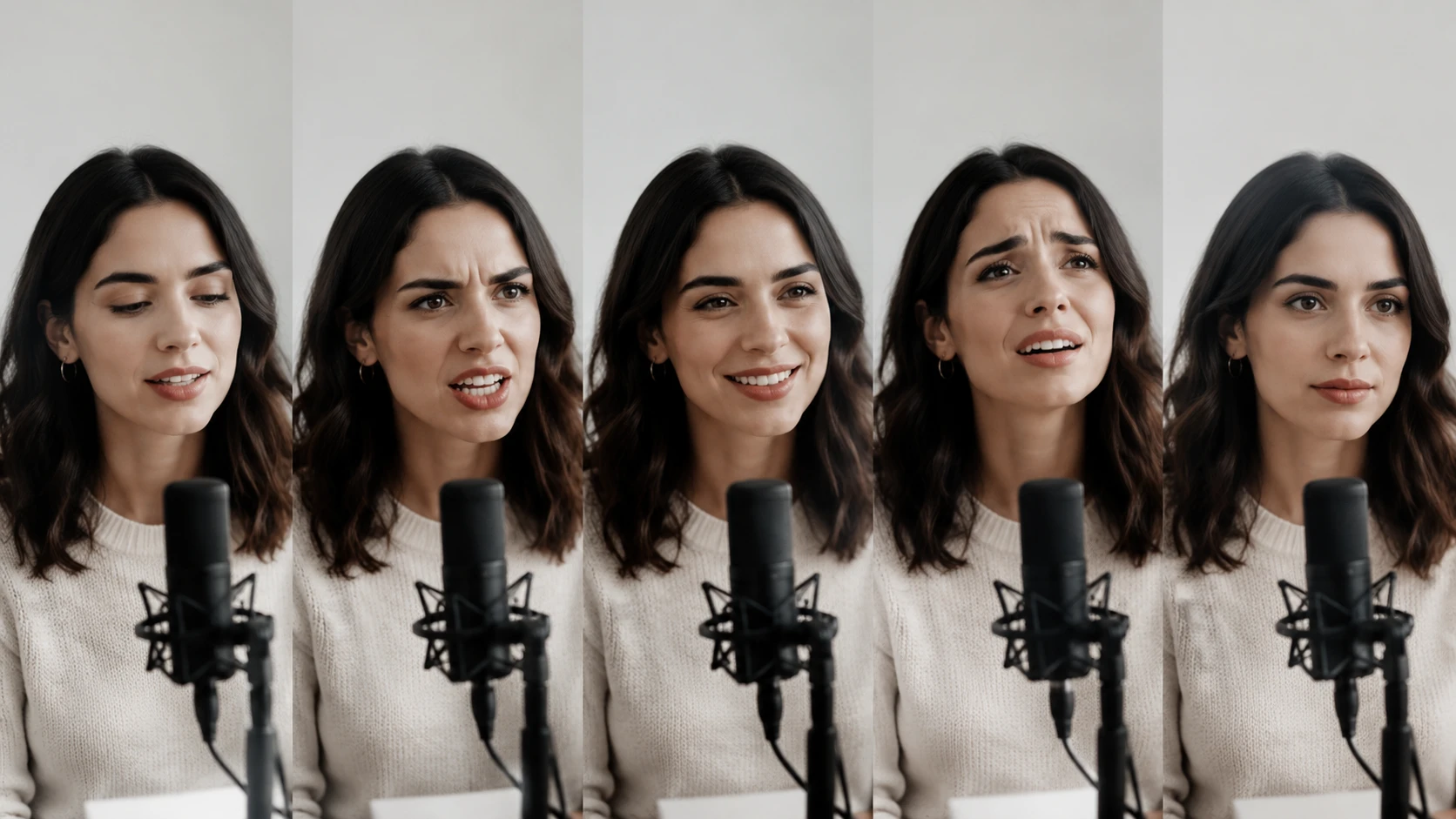
Emotion aware conversion
Set calm, urgent, warm, dramatic, or neutral delivery without flattening the original performance. This matters when the voice changer is used for marketing copy or story dialogue.
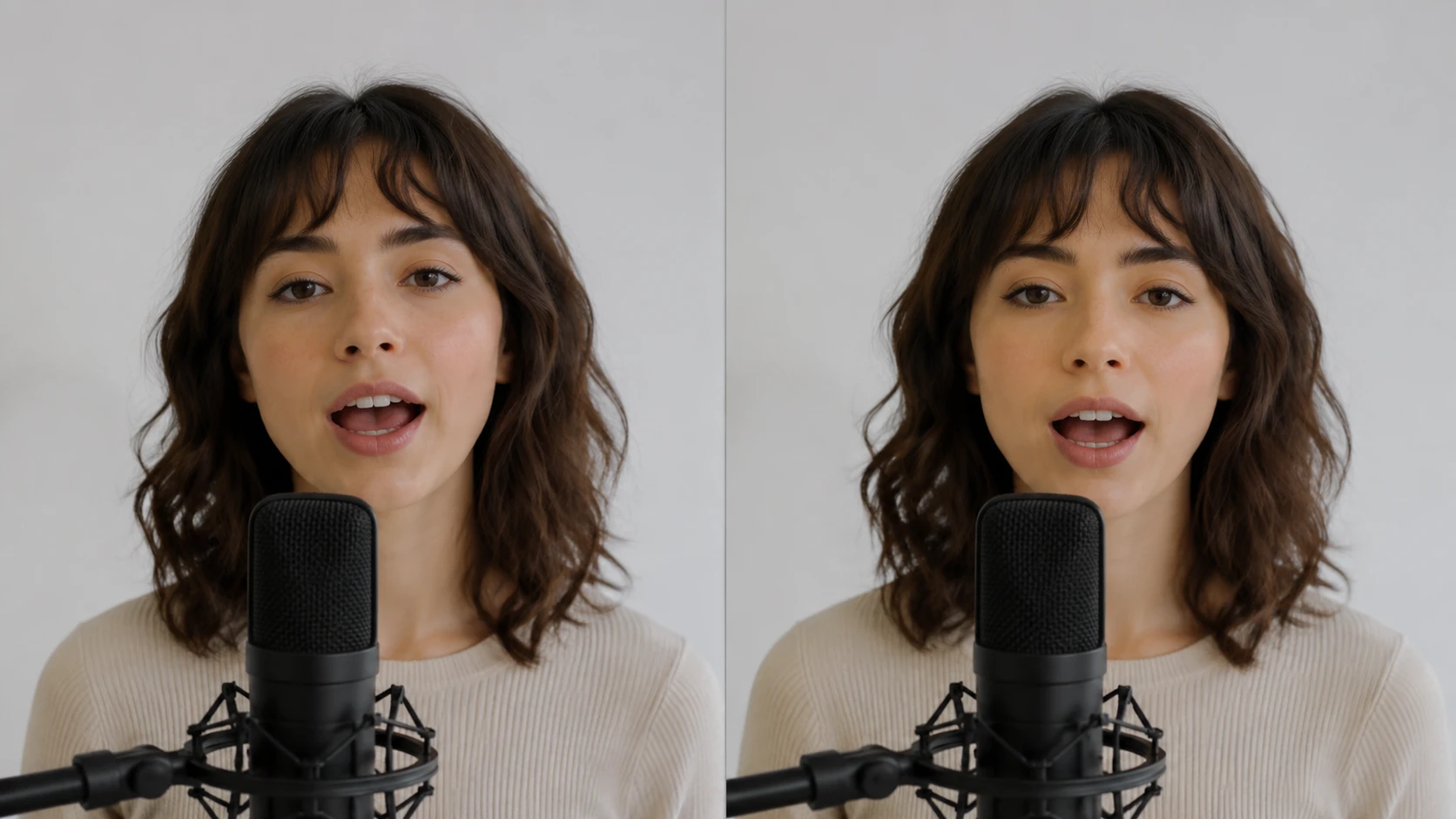
Pitch and tone shaping
Adjust pitch, brightness, depth, and speed with controlled settings. Use it as a voice modulator when a specific vocal texture must stay consistent across a series.
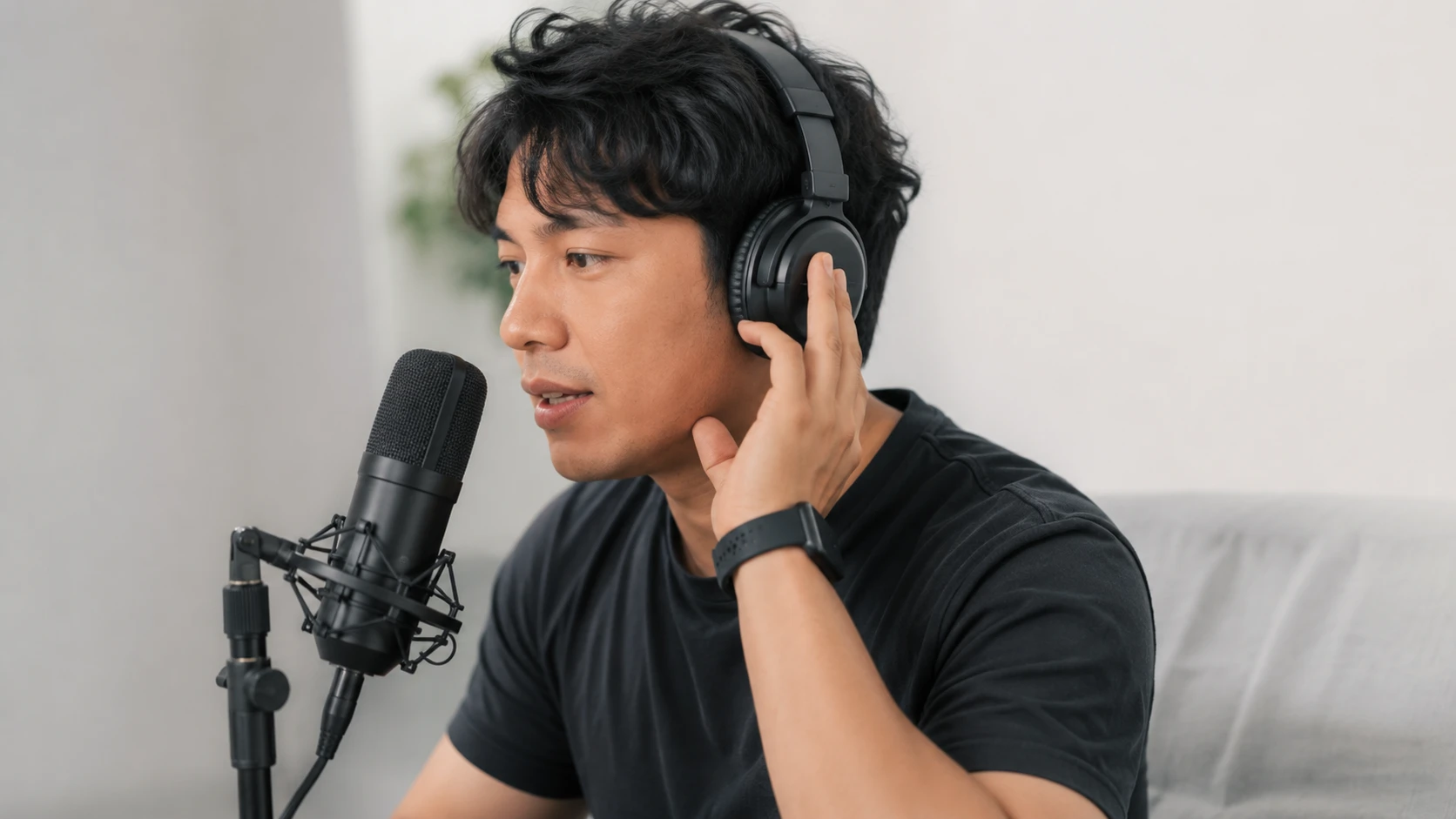
Live stream voice preview
Test a real time voice changer setting before a broadcast, then lock the approved profile for stable output. Use monitoring to catch harsh tones before viewers hear them.
Production teams on changed voices
These comments reflect how teams use PhotoGenerator for role specific audio, campaign timing, and controlled vocal identity.
Mia Hart
Ecommerce Video Lead
PhotoGenerator helped us create clear product demo narration in three languages without losing the seller's original pacing.
Daniel Cho
Marketing Producer
Our campaign spots needed a warmer narrator, and PhotoGenerator kept the pauses close enough for the existing video edit.
Priya Nair
Game Audio Designer
I use the voice changer to test character reads before sending scripts to final casting, which saves a full review round.
Marcus Reed
Livestream Host
The voice changer app flow made it simple to compare a robotic persona with my normal stream voice before the show.
Elena Torres
Localization Manager
The online voice changer kept Spanish and English takes aligned, so our subtitles and timing notes stayed usable.
Samira Wells
Social Content Strategist
PhotoGenerator gave us a clean voice changer with effects for short ads where each character needed a distinct tone.
Voice changer questions for production audio
Generate campaign audio with a voice changer.
Use PhotoGenerator to turn a prompt into polished voice output for product videos, character clips, ads, and live content. The voice changer helps teams keep tone, timing, and delivery consistent.
Create Image